Introduction
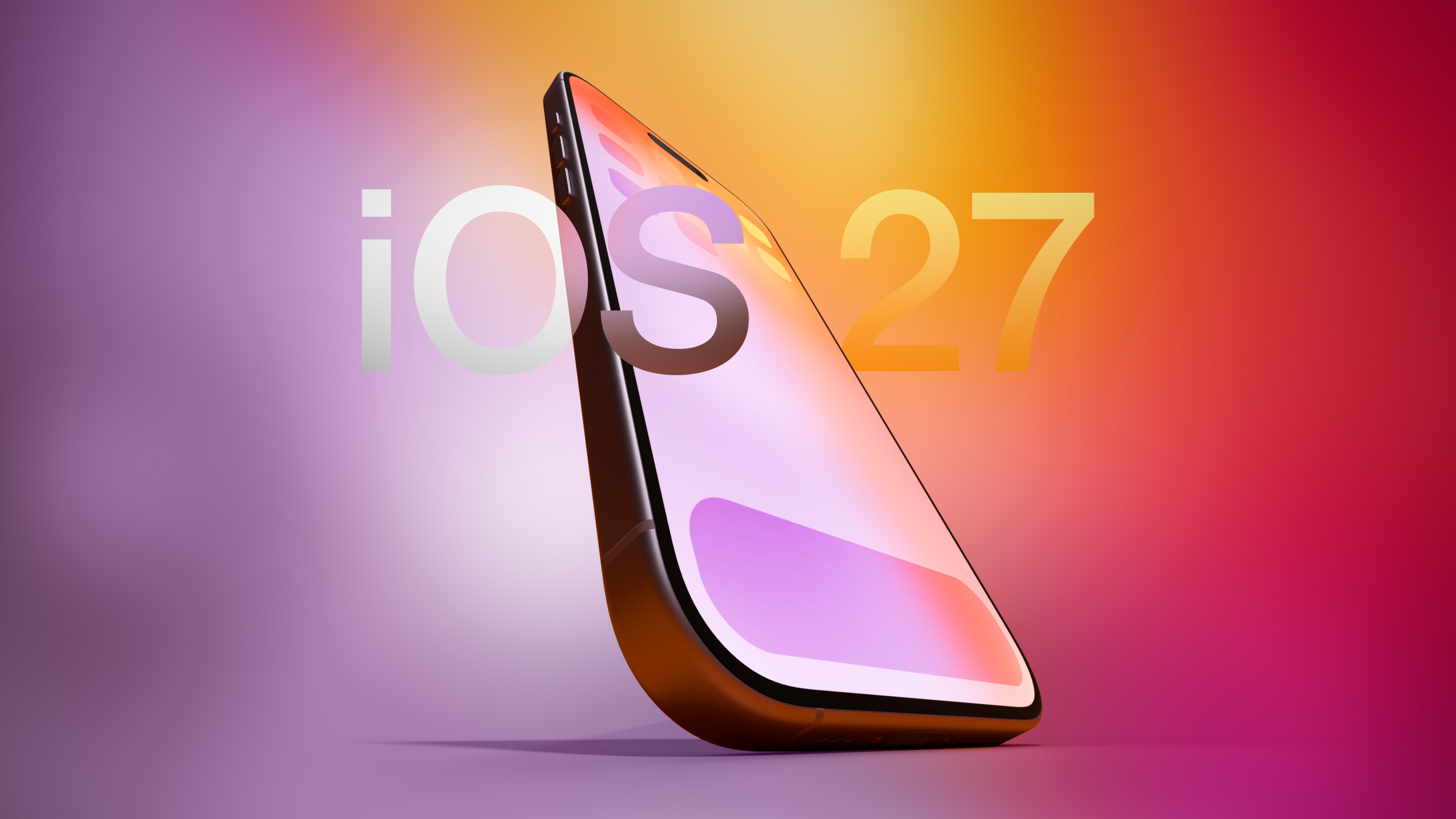
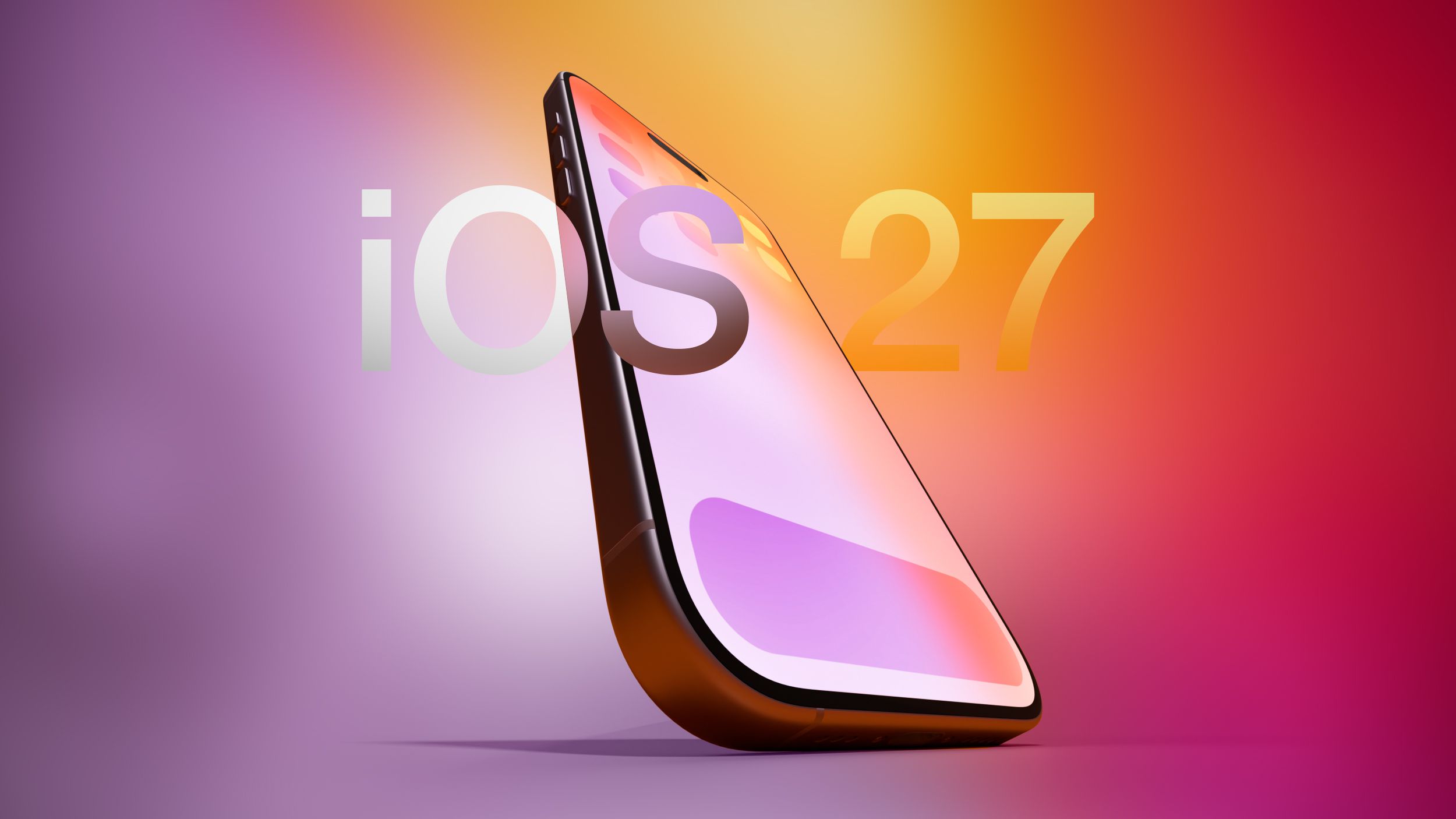
Apple is set to introduce iOS 27 at WWDC 2026 on June 8, bringing a host of rumored enhancements that promise to transform your iPhone experience. From a dedicated Siri app to advanced satellite capabilities, this guide walks you through everything you need to know—and how to get ready. Whether you're a developer eager to test the beta or a regular user planning your upgrade, follow these steps to make the most of iOS 27.
What You Need
- Compatible iPhone model – Likely iPhone 15 and newer, with iPhone 18 Pro/Pro Max/Ultra required for full satellite features.
- Apple ID – For beta registration and app access.
- Developer account (optional) – Needed for early developer beta; public beta requires only a free Apple ID.
- Reliable internet connection – For downloading beta software and updates.
- Backup of your current device – Use iCloud or a computer to safeguard data before updating.
- Sufficient storage space – At least 5-10 GB free for the update.
Step-by-Step Guide
-
Step 1: Understand the New Siri App and Its Features
iOS 27 is rumored to introduce a dedicated Siri app across iPhone, iPad, and Mac, similar to ChatGPT or Gemini. This app will let you interact with Siri via text or voice and review past conversations. On the iPhone, a new interface in the Dynamic Island will show a "Search or Ask" prompt with a glowing cursor. Additionally, delayed personalized Siri features from 2024 will finally arrive—like asking about your mother's flight based on data from Mail and Messages. To prepare, start thinking about how you'll use these natural-language queries, and ensure your privacy settings allow Siri to access relevant apps.
-
Step 2: Explore Planned Satellite Connectivity Upgrades
Satellite features are expanding in iOS 27, with 5G satellite internet connectivity rumored for premium iPhone 18 models equipped with Apple's C2 modem. Four new capabilities are expected: Apple Maps via satellite, Photos support in Messages via satellite, third-party app integration in the App Store, and satellite connection without pointing your phone at the sky. Amazon's acquisition of Globalstar suggests long-term support for current and future iPhones. Check which features are available in your country and consider upgrading to a compatible device if you want the full satellite experience.
-
Step 3: Learn About the “Mac OS X Snow Leopard” Bug-Fix Focus
iOS 27 may adopt a “Snow Leopard” approach, prioritizing stability and performance over flashy new features. This means fewer radical changes but smoother operation, fewer crashes, and improved battery life. To benefit, you should plan to update even if you don't need the latest Siri or satellite tools—since a more stable OS enhances daily use. This step is about setting expectations: iOS 27 might not look drastically different, but it will run better.
-
Step 4: Review All Current and New Satellite Features
Already, iOS offers Emergency SOS, Find My, Roadside Assistance, and Messages via satellite (all free in supported areas without Wi-Fi or cellular). iOS 27 adds the four new features mentioned in Step 2. To take full advantage, make sure your iPhone model supports satellite connectivity (iPhone 14 and newer). Familiarize yourself with how to activate satellite mode—usually via a prompt when no network is available. Also, note that third-party apps will soon tap into this capability, so watch for updates from your favorite apps.
Source: www.macrumors.com -
Step 5: Follow the Beta Release Timeline
The first developer beta of iOS 27 will likely be available right after WWDC on June 8. A public beta typically follows in July. The final public release is expected in September. To get early access, enroll in Apple's Beta Software Program with your Apple ID (for public beta) or pay for a developer account. Download the beta profile from Apple's website, then install via Settings > General > Software Update. Remember that betas can be unstable, so install on a secondary device if possible.
-
Step 6: Prepare Your iPhone for the Update
Before updating to iOS 27 (beta or final), back up your iPhone using iCloud or a computer. Ensure you have enough storage space—delete unused apps or files if needed. Check that your device is compatible (most iPhones from the last 2-3 years should be). Have your Apple ID password handy, and plug in your phone during installation to avoid interruptions. This preparation ensures a smooth upgrade and protects your data.
Tips for a Smooth iOS 27 Experience
- Back up before any beta: Beta versions often contain bugs that can cause data loss. Always preserve your current state.
- Test Siri improvements early: If you install the beta, try the new Siri app and Dynamic Island interface to provide feedback.
- Check satellite compatibility: Not all iPhone models support every satellite feature. Review Apple's spec sheet for your model.
- Manage expectations: Features are based on rumors and may change before the final release. Stay tuned to reliable sources like Bloomberg.
- Use a secondary device for betas: If possible, install the beta on an older iPhone to avoid disrupting daily use.
- Keep your iOS updated: Once iOS 27 is publicly released, install it promptly to benefit from security fixes and stability improvements.
For more detailed breakdowns, see the sections on Siri App, Satellite Connectivity, and Beta Timeline above.